10 classic-editor-remember: classic-editor
12 lastmod: "2020-11-10T07:20:07+00:00"
13 guid: http://juplo.de/?p=1037
16 title: 'How To Redirect To Spring Security OAuth2 Behind a Gateway/Proxy -- Part 2: Hiding The App Behind A Reverse-Proxy (Aka Gateway)'
17 url: /how-to-redirect-to-spring-security-oauth2-behind-a-gateway-proxy-hiding-the-app-behind-a-reverse-proxy-gateway/
20 This post is part of a series of Mini-Howtos, that gather some help, to get you started, when switching from localhost to production with SSL and a reverse-proxy (aka gateway) in front of your app, that forwards the requests to your app that listens on a different name/IP, port and protocol.
22 ## In This Series We...
24 1. [Run the official Spring-Boot-OAuth2-Tutorial as a container in docker](/howto-redirect-to-spring-security-oauth2-behind-a-gateway-proxy-running-your-app-in-docker/)
25 1. Simulate production by hiding the app behind a gateway (this part)
26 1. Show how to debug the oauth2-flow for the whole crap!
27 1. Enable SSL on our gateway
28 1. Show how to do the same with Facebook, instead of GitHub
30 I will also give some advice for those of you, who are new to Docker - _but just enough to enable you to follow_.
32 This is **part 2** of this series, that shows how to **run a Spring-Boot OAuth2 App behind a gateway**
33 \- Part 1 is linked above.
35 ## Our Plan: Simulating A Production-Setup
37 We will simulate a production-setup by adding the domain, that will be used in production - `example.com` in our case -, as an alias for `localhost`.
39 Additionally, we will start an [NGINX](https://nginx.com) as reverse-proxy alongside our app and put both containers into a virtual network.
40 This simulates a real-world secenario, where your app will be running behinde a gateway together with a bunch of other apps and will have to deal with forwarded requests.
42 Together, this enables you to test the production-setup of your oauth2-provider against a locally running development environment, including the configuration of the finally used URIs and nasty forwarding-errors.
44 To reach this goal we will have to:
46 1. [Reconfigure our oauth-provider for the new domain](#provider-production-setup)
47 1. [Add the domain as an alias for localhost](#set-alias-for-domain)
48 1. [Create a virtual network](#create-virtual-network)
49 1. [Move the app into the created virtual network](#move-app-into-virtual-network)
50 1. [Configure and start nginx as gateway in the virtual network](#start-gateway-in-virtual-network)
53 Any other server, that can act as reverse proxy, or some real gateway,like [Zuul](https://github.com/Netflix/zuul "In real real-world you should consider something like Zuul of similar") would work as well, but we stick with good old NGINX, to keep it simple.
55 ## <a id="provider-production-setup"></a>Switching The Setup Of Your OAuth2-Provider To Production
57 In our example we are using GitHub as oauth2-provider and `example.com` as the domain, where the app should be found after the release.
58 So, we will have to change the **Authorization callback URL** to
59 **`http://example.de/login/oauth2/code/github`**
61 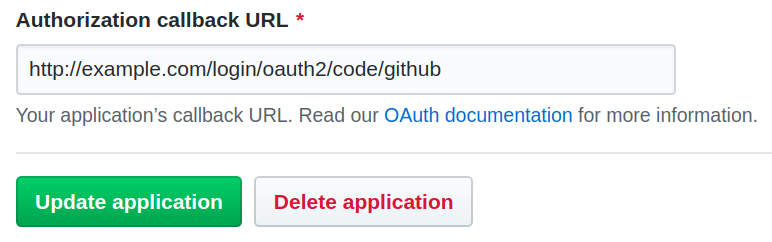
65 But we haven't released yet and nothing can be found on the reals server, that hosts `example.com`...
66 But still, we really would like to test that production-setup to be sure that we configured all bits and pieces correctly!
68 _In order to tackle this chicken-egg-problem, we will fool our locally running browser to belive, that `example.com` is our local development system._
70 ## <a id="set-alias-for-domain"></a>Setting Up The Alias for `example.com`
72 On Linux/Unix this can be simply done by editing **`/etc/hosts`**.
73 You just have to add the domain ( `example.com`) at the end of the line that starts with `127.0.0.1`:
76 127.0.0.1 localhost example.com
80 Locally running programms - like your browser - will now resolve `example.com` as `127.0.0.1`
82 ## <a id="create-virtual-network"></a>Create A Virtual Network With Docker
84 Next, we have to create a virtual network, where we can put in both containers:
87 docker network create juplo
91 Yes, with Docker it is as simple as that.
93 Docker networks also come with some extra goodies.
94 Especially one, which is extremly handy for our use-case is: They are enabling automatic name-resolving for the connected containers.
95 Because of that, we do not need to know the IP-addresses of the participating containers, if we give each connected container a name.
97 ## Docker vs. Kubernetes vs. Docker-Compose
99 We are using Docker here on purpose.
100 Using Kubernetes just to test / experiment on a DevOp-box would be overkill.
101 Using Docker-Compose might be an option.
102 But we want to keep it as simple as possible for now, hence we stick with Docker.
103 Also, we are just experimenting here.
105 _You might want to switch to Docker-Compose later._
106 _Especially, if you plan to set up an environment, that you will frequently reuse for manual tests or such._
108 ## <a id="move-app-into-virtual-network"></a>Move The App Into The Virtual Network
110 To move our app into the virtual network, we have to start it again with the additional parameter **`--network`**.
111 We also want to give it a name this time, by using **`--name`**, to be able to contact it by name.
113 _You have to stop and remove the old container from part 1 of this HowTo-series with `CTRL-C` beforehand, if it is still running - Removing is done automatically, because we specified `--rm`_:
121 juplo/social-logout:0.0.1 \
122 --server.use-forward-headers=true \
123 --spring.security.oauth2.client.registration.github.client-id=YOUR_GITHUB_ID \
124 --spring.security.oauth2.client.registration.github.client-secret=YOUR_GITHUB_SECRET
128 Summary of the changes in comparison to [the statement used in part 1](/howto-redirect-to-spring-security-oauth2-behind-a-gateway-proxy-running-your-app-in-docker/#build-a-docker-image "Skip back to part 1, if you want to compare..."):
130 - We added **`-d`** to run the container in the background - _See tips below..._
131 - We added **`--server.use-forward-headers=true`**, which is needed, because our app is running behind a gateway now - _I will explain this in more detail later_
132 - _And:_ Do not forget the **`--network juplo`**,
133 which is necessary to put the app in our virtual network `juplo`, and **`--name app`**, which is necessary to enable DNS-resolving.
135 - You do not need the port-mapping this time, because we will only talk to our app through the gateway.
137 Remember: _We are **hiding** our app behind the gateway!_
139 ## Some quick tips to Docker-newbies
141 - Since we are starting multiple containers, that shall run in parallel, you have to start each command in a separate terminal, because **`CTRL-C`** will stop (and in our case remove) the container again.
143 - Alternatively, you can add the parameter **`-d`** (for daemonize) to start the container in the background.
145 - Then, you can look at its output with **`docker logs -f NAME`** (safely disruptable with `CTRL-C`) and stop (and in our case remove) the container with **`docker stop NAME`**.
147 - If you wonder, which containers are actually running, **`docker ps`** is your friend.
149 ## <a id="start-gateway-in-virtual-network"></a>Starting the Reverse-Proxy Aka Gateway
151 Next, we will start NGINX alongside our app and configure it as reverse-proxy:
153 1. Create a file **`proxy.conf`** with the following content:
156 upstream upstream_a {
162 server_name example.com;
164 proxy_set_header X-Real-IP $remote_addr;
165 proxy_set_header X-Forwarded-For $proxy_add_x_forwarded_for;
166 proxy_set_header X-Forwarded-Proto $scheme;
167 proxy_set_header Host $host;
168 proxy_set_header X-Forwarded-Host $host;
169 proxy_set_header X-Forwarded-Port $server_port;
172 proxy_pass http://upstream_a;
178 - We define a server, that listens to requests for the host **`example.com`** ( `server_name`) on port **`80`**.
179 - With the `location`-directive we tell this server, that all requests shall be handled by the upstream-server **`upstream_a`**.
180 - This server was defined in the `upstream`-block at the beginning of the configuration-file to be a forward to **`app:8080`**
181 - **`app`** is simply the name of the container, that is running our oauth2-app - Rembember: the name is resolvable via DNS
182 - **`8080`** is the port, our app listens on in that container.
183 - The `proxy_set_header`-directives are needed by Spring-Boot Security, for dealing correctly with the circumstance, that it is running behind a reverse-proxy.
185 _In part 3, we will survey the `proxy_set_header`-directives in more detail._
186 1. Start nginx in the virtual network and connect port `80` to `localhost`:
192 --network juplo -p 80:80 \
193 --volume $(pwd)/proxy.conf:/etc/nginx/conf.d/proxy.conf:ro \
198 _This command has to be executed in the direcotry, where you have created the file `proxy.conf`._
200 - I use NGINX here, because I want to demystify the work of a gateway
201 _[traefik](https://docs.traefik.io/ "Read more about this great tool") would have been easier to configure in this setup, but it would have disguised, what is going on behind the scene: with NGINX we have to configure all manually, which is more explicitly and hence, more informative_
202 - We can use port `80` on localhost, since the docker-daemon runs with root-privileges and hence, can use this privileged port - _if you do not have another webserver running locally there_.
203 - `$(pwd)` resolves to your current working-directory - This is the most convenient way to produce the absolute path to `proxy.conf`, that is required by `--volume` to work correclty.
205 If you have reproduced the receipt exacly, your app should be up and running now.
208 - Because we set the alias `example.com` to point at `localhost` you should now be able to open your app as **`http://example.com` in a locally running browser**
209 - You then should be able to login/logount without errors
210 - If you have configured everything correctly, neither your app nor GitHub should mutter at you during the redirect to GitHub and back to your app
212 ## Whats next... is what can go wrong!
214 In this simulated production-setup a lot of stuff can go wrong!
215 You may face nearly any problem from configuration-mismatches considering the redirect-URIs to nasty and hidden redirect-issues due to forwarded requests.
217 _Do not mutter at me..._
218 _**Remember:** That was the reason, we set up this simulated production-setup in the first place!_
220 In the next part of this series I will explain some of the most common problems in a production-setup with forwarded requests.
221 I will also show, how you can debug the oauth2-flow in your simulated production-setup, to discover and solve these problems
 projects / website / blob